Common AI Enamel Pin Mistakes: How to Fix Them
Avoid common AI Enamel Pin Mistakes, fix AI enamel pin errors, apply AI pin design tips, and create manufacturing-ready AI artwork when you Create Pins with AI.
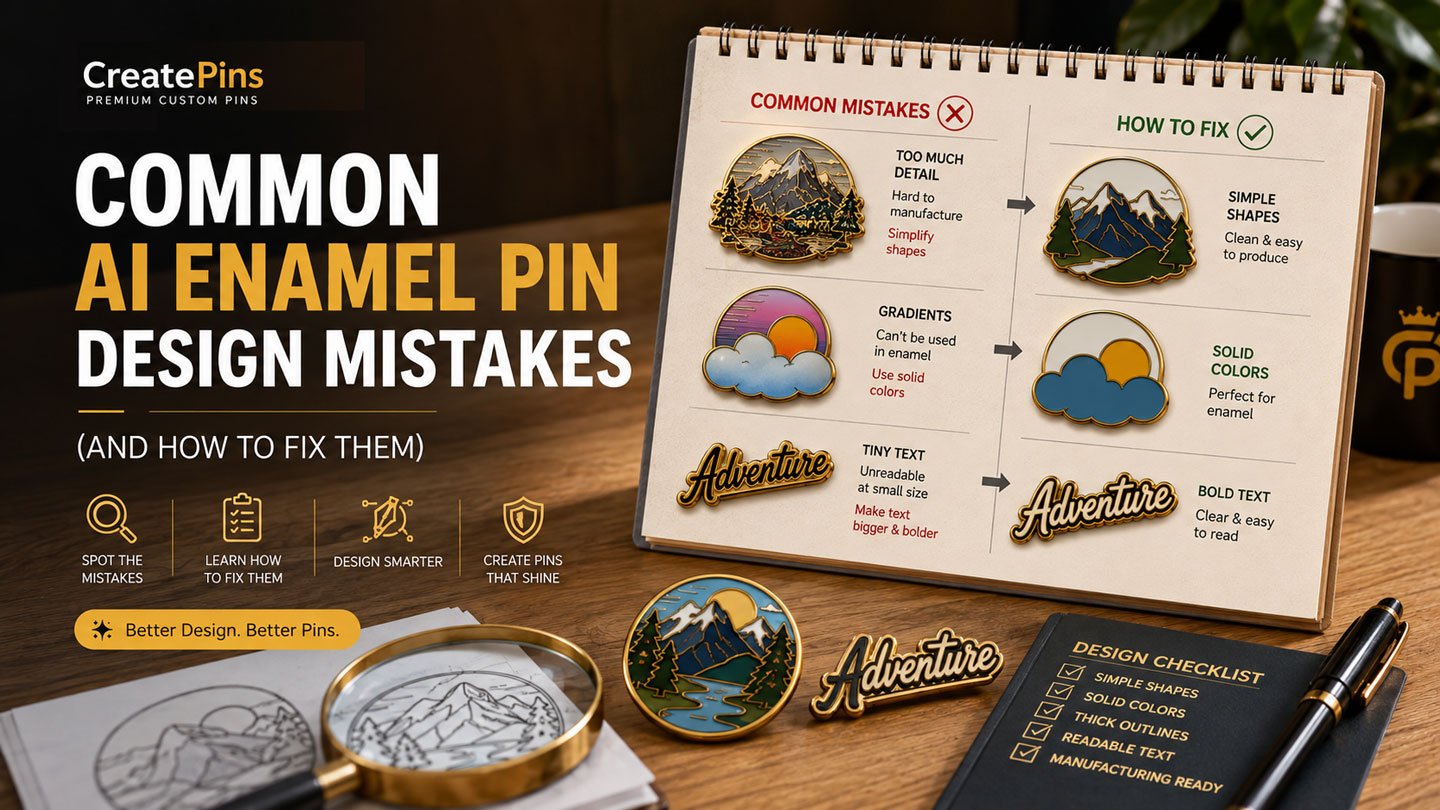
Table of Contents
- Why AI Struggles with Enamel Pin Design
- 1. Using Too Many Tiny Details
- 2. Using Gradients
- 3. Soft Shadows and Lighting Effects
- 4. Hairline Metal Borders
- 5. Too Many Colors
- 6. Tiny Text
- 7. Floating Colors
- 8. Overly Complex Backgrounds
- 9. Photorealistic Rendering
- 10. Ignoring Pin Size
- 11. Forgetting the Metal Finish
- 12. Skipping Negative Prompts
- A Better AI Prompt Example
- Quick Checklist Before Sending to Your Manufacturer
- Frequently Asked Questions
- Final Thoughts
When you Create Pins with AI, you often encounter AI enamel pin errors that aren’t obvious at first. These AI Enamel Pin Mistakes can cost you time and money if you don’t catch them early. The good news is that with the right AI pin design tips, you can avoid these pitfalls and produce manufacturing-ready AI artwork.
Artificial intelligence has become one of the fastest ways to generate creative enamel pin concepts. With tools like ChatGPT, Midjourney, FLUX, and Ideogram, anyone can transform an idea into a detailed illustration within minutes. However, to Create Pins with AI that are truly viable, you need to understand where the technology falls short.
There’s one important catch: AI creates artwork, not manufacturing files. Many AI-generated images look amazing on a screen but become difficult — or even impossible — to manufacture as enamel pins without significant revisions. Tiny details, gradients, transparent effects, and unrealistic textures often need to be redesigned before production. Recognizing these AI enamel pin errors early can save you time and money.
The good news is that most of these problems are easy to avoid once you understand how enamel pins are manufactured. In this guide, we’ll walk through the most common AI Enamel Pin Mistakes, explain why they happen, and show you practical ways to fix each one before sending your artwork to a manufacturer. With the right AI pin design tips, you can turn a flawed concept into a clean, manufacturable design.
New to AI pin design? Start with our Ultimate Guide to Designing Enamel Pins with AI for tool comparisons, the full prompt formula, and downloadable templates before working through the fixes below.
Why AI Struggles with Enamel Pin Design
AI image generators are trained to create visually appealing artwork, not products designed for metal manufacturing. An enamel pin has unique production requirements that most AI tools simply don’t know about. Understanding these constraints is the first step toward avoiding AI Enamel Pin Mistakes:
- Every enamel color must be enclosed by metal
- Metal borders need sufficient width
- Small details may disappear during production
- Colors are usually solid rather than blended
- The design must remain clear at a relatively small size
Without instructions that reflect these requirements, AI naturally creates illustrations that prioritize aesthetics over manufacturability. The fixes below all come down to the same idea: tell the AI about the factory, not just the artwork. Applying these AI pin design tips will help you avoid the most common AI Enamel Pin Mistakes and create cleaner, more reliable concepts.
Already have an AI concept? Send it over and we’ll flag what needs to change — free of charge.
Get a Custom Pin QuoteThe 12 Most Common AI Enamel Pin Mistakes
Using Too Many Tiny Details
AI often fills illustrations with fine fur textures, tiny leaves, small stars, decorative patterns, intricate clothing folds, hair strands, and dense backgrounds. These details look impressive on a large monitor but may become unreadable on a 1.5-inch enamel pin — very small metal lines can be difficult to manufacture, and tiny enamel sections may not fill cleanly. This is one of the most frequent AI enamel pin errors.
Instead of asking for “highly detailed” artwork, prompt for bold simplified shapes, large enamel areas, minimal details, clean vector illustration, and thick outlines. Use this AI pin design tip to aim for a design that stays recognizable even viewed from a distance.
Using Gradients
AI loves gradients because they create depth and realism. Unfortunately, traditional hard and soft enamel pins use solid color fills — gradient transitions simply can’t be recreated with standard enamel filling.
Instead of “golden sunset with smooth gradients,” try “six solid sunset colors with bold separation.” If your design truly needs a gradient look, ask your manufacturer about UV printing or screen printing instead.
Soft Shadows and Lighting Effects
AI frequently adds drop shadows, ambient lighting, rim lighting, glow effects, lens flare, and reflections. These look beautiful on screen but generally cannot be reproduced in enamel.
Add a negative prompt: no shadows, no lighting effects, no glow, flat colors, vector style. This pushes the AI toward clear shapes instead of simulated depth.
Hairline Metal Borders
AI often creates elegant but extremely thin outlines. Thin metal borders may lose strength, distort during manufacturing, or fail to separate enamel colors effectively.
Include instructions like thick metal borders, bold outlines, heavy line weight, and manufacturing-ready. A slightly thicker outline almost always produces a cleaner, more durable pin.
Too Many Colors
AI isn’t concerned about manufacturing costs and may generate artwork with dozens of colors. While many colors are technically possible, unnecessary color changes complicate production and can increase cost. Correcting this AI enamel pin error early keeps your project on budget.
Specify a maximum color count — “maximum six solid enamel colors,” “seven-color palette,” or “limited color scheme.” Limiting colors often results in a stronger composition. See our full Color Palette Guide for planning tips.
Tiny Text
AI frequently includes small words or decorative lettering. Small text can become unreadable once reduced to enamel pin size.
- Remove text entirely if possible
- Use initials instead of full words
- Increase the pin size
- Move important wording to the backing card instead
Not sure how your design’s cost changes with color count or size? Run the numbers before you commit.
Try the Pricing EstimatorFloating Colors
Some AI-generated images contain color areas that don’t connect to surrounding metal. Every enamel section generally needs to be enclosed by metal lines to hold the color in place.
Use instructions like “every color enclosed by metal,” “no floating color sections,” and “suitable for die-struck enamel production.” Manufacturers can often adjust minor issues, but preventing them from the start saves time. A key AI pin design tip is to always check for this before finalizing.
Overly Complex Backgrounds
AI tends to generate forests, cities, stars, clouds, mountains, and decorative textures all in one image. The pin becomes visually crowded and loses its focal point.
Choose one clear subject — one fox, one coffee mug, one mountain, one flower, one mascot. Simple designs are often the most memorable and the easiest to manufacture cleanly.
Photorealistic Rendering
AI can produce incredibly realistic artwork with fur, reflections, and photographic detail. Enamel pins rely on bold metal outlines and flat color fills, not realistic textures.
Replace prompts like “ultra realistic,” “hyper realistic,” or “cinematic lighting” with “flat vector illustration,” “minimal shading,” “cartoon style,” or “graphic illustration.”
Ignoring Pin Size
A design that works on a poster may fail on a small pin. Reducing artwork down to 1–2 inches makes tiny details difficult to see or manufacture.
Always specify the intended size in your prompt — “designed for a 1.5-inch enamel pin” or “suitable for a 40mm hard enamel pin.” This encourages the AI to simplify the composition. See our Expert Size Guide for reference sizing.
Forgetting the Metal Finish
Metal plating dramatically affects the final appearance of a pin, yet it’s one of the easiest details to forget in a prompt. Remembering it is essential for creating manufacturing-ready AI artwork.
Mention your preferred finish directly in the prompt — gold, silver, black nickel, rose gold, antique brass, antique copper, or dye black — so the AI can visualize the overall design accurately. Our Plating Colors Guide breaks down how each finish looks and wears.
Skipping Negative Prompts
Negative prompts are one of the easiest ways to improve AI-generated artwork, yet they’re the step most beginners skip entirely. Skipping them leads to AI Enamel Pin Mistakes that could have been avoided.
Paste in a consistent negative prompt every time to ensure your output is closer to manufacturing-ready AI artwork:
Using a consistent negative prompt can significantly reduce the need for later revisions. This simple step helps create manufacturing-ready AI artwork and is one of the most effective AI pin design tips you can adopt.
A Better AI Prompt Example
Here’s how all twelve fixes come together in a single, manufacturing-aware prompt. These tips help you Create Pins with AI that are truly production-ready instead of just a pretty image.
“Draw a realistic fox in the forest.”
See the full formatted version below.
This prompt is much more likely to produce manufacturing-ready AI artwork that can be refined into a production-ready pin. For the full formula and ten more ready-to-use templates, see our Ultimate Guide to Designing Enamel Pins with AI.
Quick Checklist Before Sending AI Artwork to Your Manufacturer
Before requesting a quote, review your design against this checklist. It will help you catch common AI Enamel Pin Mistakes and ensure you’re delivering manufacturing-ready AI artwork:
- Is the main subject clear?
- Are metal borders thick enough?
- Are all colors enclosed by metal?
- Is the color palette limited?
- Are there any gradients?
- Is the text readable?
- Are unnecessary details removed?
- Does the design still look good at 1.5 inches?
- Have you specified the metal finish?
- Have you used a strong negative prompt?
Completing this review can help reduce revisions and speed up production. For a broader look at design pitfalls beyond AI-specific issues, see AI Enamel Pin Design The Ultimate Guide to AI Prompts & Manufacturing (2026),20 Common Enamel Pin Design Mistakes That Can Ruin Your Order.
Want a second pair of eyes on your design before you order?
Explore Design ServicesFrequently Asked Questions
Can AI create production-ready enamel pin files?
Not directly. AI is excellent for concept generation, but manufacturers still need to convert the artwork into production-ready vector files with proper metal lines and color separation. Learning to identify AI enamel pin errors early helps streamline this handoff.
Can enamel pins use gradients?
Traditional hard and soft enamel pins use solid color fills. If your design requires gradients, specialty processes such as UV printing may be an option — see Hard Enamel vs. Soft Enamel Pins for more on what each process supports.
How many colors should an enamel pin have?
Most designs look great with 4–8 colors. More colors are possible, but keeping the palette limited often creates a cleaner finished product. This is one of the most practical AI pin design tips to keep in mind.
Why do manufacturers redraw AI artwork?
Manufacturers refine AI concepts to ensure proper metal borders, simplify small details, assign enamel colors, and create accurate production files — steps AI tools don’t handle on their own. This is how they transform AI concepts into manufacturing-ready AI artwork.
Final Thoughts
AI has made it easier than ever to explore creative enamel pin ideas, but understanding manufacturing limitations is the key to turning those ideas into successful products. By following these AI pin design tips to Create Pins with AI, you’ll avoid common AI Enamel Pin Mistakes, spend less time revising artwork, and more time bringing your designs to life.
At CreatePins, our experienced design team reviews AI-generated concepts and transforms them into manufacturing-ready AI artwork. We refine metal borders, optimize color separation, simplify complex details, and ensure every design is suitable for production. Whether you’re creating a single collector pin or launching a full merchandise collection, we’ll help you bridge the gap between AI creativity and professional manufacturing. For more on that process, see Custom Enamel Pin Production Expectations & Tolerances.
Ready to Create Pins with AI and Avoid AI Enamel Pin Mistakes?
Get a free quote, estimate your cost, or have our team turn your AI concept into manufacturing-ready AI artwork.
Want More Than Just Custom Pins?
Discover Raoin.com — your one-stop partner for custom products like tote bags, lanyards, patches, and more.